PS5 and Xbox Gaming Monitor Compatibility Checker
Check PS5 and Xbox Series X|S monitor timings, HDMI inputs and variable refresh support.
Check a documented monitor and console pairing
Exact model rows show what the manufacturer documents. Confirm game support and test HDR and VRR together if you use both. For models outside this starter table, use the source and timing checks in the guide below.
12 matching entries
| Monitor | Console | Mode | Input | VRR, sound or next check |
|---|---|---|---|---|
| BenQ MOBIUZ EX2710Q | PS5 | 1440p at 120 Hz | HDMI 2.0 | BenQ lists the timing and describes separate PS5 VRR support on HDMI 2.1 models. Built-in speakers and a headphone jack. |
| BenQ MOBIUZ EX2710Q | Xbox Series X | 1440p at 120 Hz | HDMI 2.0 | BenQ also lists Xbox VRR for this model. Use the Xbox display screen to confirm the combination. |
| BenQ MOBIUZ EX2710Q | Xbox Series S | 1440p at 120 Hz | HDMI 2.0 | BenQ also lists Xbox VRR for this model. Game rendering performance depends on the title. |
| BenQ MOBIUZ EX2710U | PS5 | 4K at 120 Hz | HDMI 2.1 | BenQ names this model in the PS5 VRR support list. Start with the supplied console cable. |
| BenQ MOBIUZ EX2710U | Xbox Series X | 4K at 120 Hz | HDMI 2.1 | BenQ names this model in its Xbox VRR support list. Verify the mode with the console directly connected. |
| BenQ MOBIUZ EX2710U | Xbox Series S | 1440p at 120 Hz | HDMI 2.1 | BenQ publishes this Series S mode separately. Check the game’s graphics menu. |
| ASUS TUF VG259Q5A | PS5 | 1080p at 120 Hz — unconfirmed | HDMI 2.0 | ASUS lists Full HD and an HDMI frequency range. Verify the exact console timing and VRR before purchase. |
| ASUS TUF VG259Q5A | Xbox Series X | 1080p at 120 Hz — unconfirmed | HDMI 2.0 | Check the timing on the Xbox display capabilities screen. |
| ASUS TUF VG259Q5A | Xbox Series S | 1080p at 120 Hz — unconfirmed | HDMI 2.0 | Check the timing on the Xbox display capabilities screen. |
| Other monitor | PS5 | Check the manual | HDMI | Use the monitor timing table and the console’s Video Output screen. |
| Other monitor | Xbox Series X | Check the manual | HDMI | Find the exact model’s input timing, then check Xbox display capabilities. |
| Other monitor | Xbox Series S | Check the manual | HDMI | Find the exact model’s input timing, then check Xbox display capabilities. |
The 200 Hz printed on a monitor box tells you very little about the PS5. You need the exact HDMI timing your console will send, through the port you will actually use.
A display can accept 1440p and still fail to provide the particular variable refresh mode you expected. Start with the signal you need, then verify every part of the path before buying.
The useful result is a combination such as 1080p at 120 Hz on HDMI 2 with variable refresh confirmed for your console. Broad labels like “4K”, “120 FPS” or “Adaptive-Sync” help build a shortlist but leave questions about ports and games.
This guide explains what to enter in the checker and how to confirm results at home. It uses platform and manufacturer specifications and separates documented capability from first-hand confirmation.
Pick the target mode before comparing monitors
| Target | Who it suits | Details still to verify |
|---|---|---|
| 1080p at 60 Hz | Existing displays, story games and dependable fallback testing | Exact resolution, HDMI input and audio path |
| 1080p at 120 Hz | Competitive or responsive supported games on a modest screen | Supported HDMI timing and the game’s 120 Hz mode |
| 1440p at 60 Hz | A compact desk setup that also needs more workspace | Console output support and exact monitor timing |
| 1440p at 120 Hz | A sharper screen with higher refresh for supported games | Both capabilities together on the selected HDMI input |
| 4K at 60 Hz | Larger screens or slower-paced games with detail as a priority | HDMI path, configured display mode, HDR where wanted |
| 4K at 120 Hz | A premium option for a compatible console and games | Exact HDMI timing, verified cable path and console refresh options |
| VRR at the selected mode | Games with varying frame delivery, where the pairing supports it | Console protocol, input, firmware, resolution and refresh range |
Output and rendering are different. The resolution reported by a console tells you what timing arrives at the monitor.
It does not tell you every scene rendered internally at that resolution. Games can use reconstruction, quality settings or dynamic resolution.
In much the same way, a 120 Hz output is not proof that the game maintains 120 frames per second. Keep output timing, the game's performance mode and measured game performance in separate columns when comparing.
PlayStation documents 1440p output when the selected monitor supports a qualifying 60 Hz or 120 Hz timing. Sony also describes PS5 VRR on compatible HDMI equipment.
Microsoft’s Series S page positions that console for gaming up to 1440p and up to 120 FPS when supported, while Series X marketing includes 4K and up to 120 FPS. A device ceiling and a game’s mode are independent constraints.
Ask whether the particular console and title deliver the combination you want, rather than treating the broad model description as a test result for your purchase.
Read a monitor listing without inheriting the PC spec
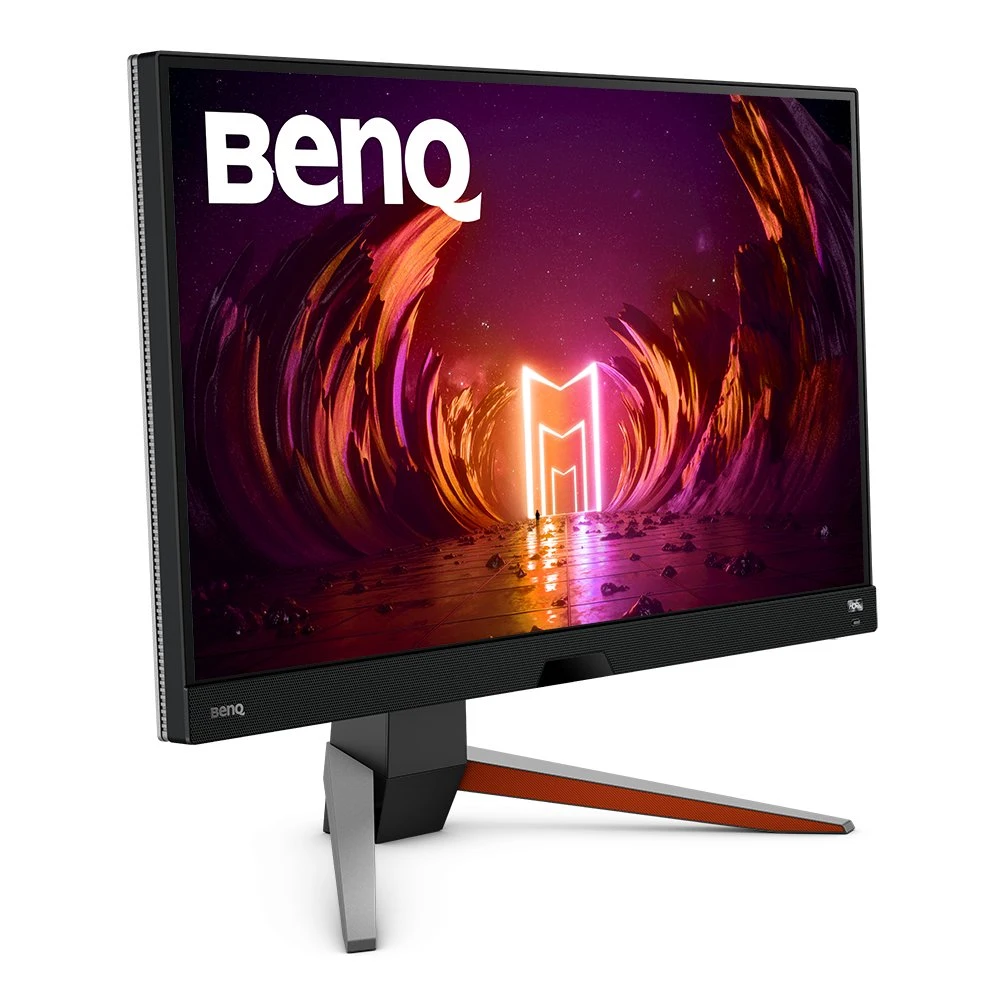
BenQ’s 27-inch EX2710Q is a useful example. Its headline PC figure is 165 Hz, while BenQ’s console table gives 1440p at 120 Hz.
The same manufacturer lists the EX2710U at 4K and 120 Hz for PS5 and Xbox Series X, and at 1440p and 120 Hz for Series S.
BenQ lists those capabilities for exact model numbers. Use the checker’s individual rows and the vendor’s separate VRR notes when the second-hand listing uses only the MOBIUZ name or when you want fixed refresh and VRR at the same timing. BenQ EX2710Q · BenQ EX2710U
Find the exact make and model code, including the suffix. Look for a supported timings table in the manual, ideally one split by HDMI and DisplayPort.
Consoles connect over HDMI. A rate listed only under DisplayPort is consequently unsuitable as evidence for the console.
Product pages are useful for identifying a model and counting ports, while a proper timing table or a documented console confirmation is firmer evidence about the combination that matters.
The ASUS VG259Q5A illustrates the difference. ASUS describes its native panel as 1080p and promotes a maximum of 200 Hz.
That is a useful fact about the monitor. It leaves the reader to determine whether the selected HDMI mode supports the chosen console and desired refresh rather than treating 200 as a console result.
If using a family comparison, verify 1080p at 120 Hz and any console VRR support against the timing documentation or a trustworthy demonstration of that exact pairing. Mark an unverified pairing as unknown.
When a listing promises a high refresh rate, locate any footnote specifying port, mode, colour or settings. There can be separate timings for PC use and console use, or an option such as enhanced input mode that changes which timings are exposed.
An online listing may use a photo from a slightly different SKU. Ask for photographs of the model label if buying open box.
A return is preventable when you check compatibility before the monitor is packed.
HDMI version numbers are incomplete buying criteria. Two displays described using the same version can have different input behaviour and feature combinations.
Look for an explicit 4K/120 timing and a compatible console confirmation when those are the targets. HDMI Licensing Administrator publishes certification information for cables.
A correctly rated cable is important for demanding modes, but a better cable cannot make a port or monitor gain a mode it does not support. Use the supplied console lead if it is appropriate for the supported mode and check certified alternatives when replacing it.
Verify the connected mode on the actual console
PlayStation 5
Use the video-output information under Settings → Screen and Video → Video Output to see what the PS5 recognises. Use the supported resolution test where available, then launch a game that actually offers the refresh mode.
The home screen may show a different rate from the game. Recheck the monitor’s input information while the game’s relevant mode is active.
A console-level setting may allow a feature even when the title has no way to use it.
If a desired option fails, prioritise useful observations. Write down the resolution the console detects, the HDMI input name and whether a direct cable changes the detection.
Try the lower matching mode. Confirm that 1080p/60 works before attempting combinations with high refresh, HDR or VRR.
This avoids drawing a conclusion about every feature from one blank picture and gives you enough information to compare with the monitor maker’s timing table.
Xbox Series X and Series S
On Xbox, use the TV and display settings and its display-capability screen as the first check, then select the desired resolution and refresh with a direct connection. Confirm output in the monitor’s on-screen information when a compatible game is running.
Microsoft’s support material describes how to set up 4K gaming at 120 Hz for applicable equipment. Use the console’s exact model and documented capability rather than applying a Series X expectation to a Series S purchase.
If a game has multiple display modes, identify the mode in the game menu before changing a display setting. Preserve a known-good configuration while testing.
If high refresh turns on after you change several settings at once, you learn that something improved but not which setting mattered. Reintroduce features in order until you can confidently reproduce the working setup.
Both consoles
Variable refresh is worth testing separately from connection success. A display may accept a fixed 120 Hz signal while the console leaves VRR disabled at the chosen resolution.
If optional HDR is important to you, test it separately too. A signal being accepted says little about picture quality, brightness, colour or how well a display handles changing frame delivery.
Assess those attributes according to your preferences and, when buying, according to measured evidence for the exact monitor.
Trace a bad HDMI path before replacing hardware
Before you route the cable around the desk or commit to a monitor arm, use the desk fit calculator to check how much room the stand and plugs will take up.
- Connect the console directly to the monitor on the documented input using one suitable cable. Leave receivers, switches and capture hardware disconnected during this check.
- Establish a working lower mode and record what the console and the monitor each report.
- Enable the specific target resolution and refresh. Use a compatible game and check its menu.
- Test VRR and HDR separately at the target timing. Change one setting at a time and record which combinations work.
- Restore the receiver, switch, soundbar or capture device one component at a time. Recheck the target signal and audio after each change.
The intervening equipment has to pass every timing and feature required in the monitor direction. Audio deserves the same treatment.
Some PC monitors have speakers or an audio output, and others rely on a connected headset or another audio path. Buying a monitor for a shared console desk means confirming how players will actually hear it.
For a household that shares one screen across a PC and console, count practical inputs rather than just identifying a headline spec. The PC can often use its preferred monitor input while each console needs a usable HDMI port.
Check accessibility of the input buttons, room for cable bends, and whether a capture setup occupies another port. If a switch is necessary, include its verified limits in the compatibility worksheet and total purchase cost.
An input that supports your desired mode can also be inconvenient if it faces a shelf panel. Measure the distance to the wall with a real connector, including the space required to turn the cable gently.
A right-angle adapter introduces another component to verify. Prefer moving the monitor or changing the cable path before assuming the adapter will pass every desired format.
What the checker result can and cannot establish
A positive result should always correspond to an exact combination. The scope includes the selected device, resolution, refresh rate, input standard, any known firmware condition and the level of evidence.
A negative result is useful where a manufacturer timing table rules out the required mode. Unknown is the correct answer where documentation is silent or where a detail is based on a different monitor variant.
Silence should not be converted into apparent incompatibility or support.
Check date and provenance as well as model. A firmware update can change behaviour.
A successful community report is useful when it includes the exact monitor, port and console pair, but it should not overrule a precise published limitation unless the discrepancy can be reproduced. Standardise the way you describe findings and keep a quick photo of the signal information screen if you test a pairing yourself.
The best choice is a display that delivers the combination you intend to use, with usable audio and enough ports for the actual desk. Confirm basic timings first, verify variable refresh if it matters, and keep the physical signal chain simple until you see the desired mode.
A stable 1080p/120 setup can be the better purchase for someone who actually plays at that mode. A 4K screen earns its premium when its detail, size or supported game modes solve a real problem for the buyer.